

Blog
Zoho Books Project Accounting for Service Businesses
Track time, expenses, and profitability per project in Zoho Books. Covers hourly billing, milestones, budgets,…
6 min read
Read article →
Facebook Lead Ads generate form submissions directly inside the Facebook and Instagram feed, but those leads often sit in CSV exports for hours before anyone follows up. Zoho Marketing Automation and Facebook Ads integration solves this by pushing every lead into your marketing engine the moment someone submits a form. From there, you can trigger nurture journeys, score leads, sync qualified contacts to Zoho CRM, and send offline conversion data back to Meta through the Conversions API. This guide covers the full setup: connecting accounts, mapping form fields, building automated journeys, configuring CAPI for offline events, creating retargeting audiences, and reading cross-channel attribution reports. If you run paid campaigns on Meta and use Zoho for marketing or sales, this integration closes the gap between ad spend and revenue.
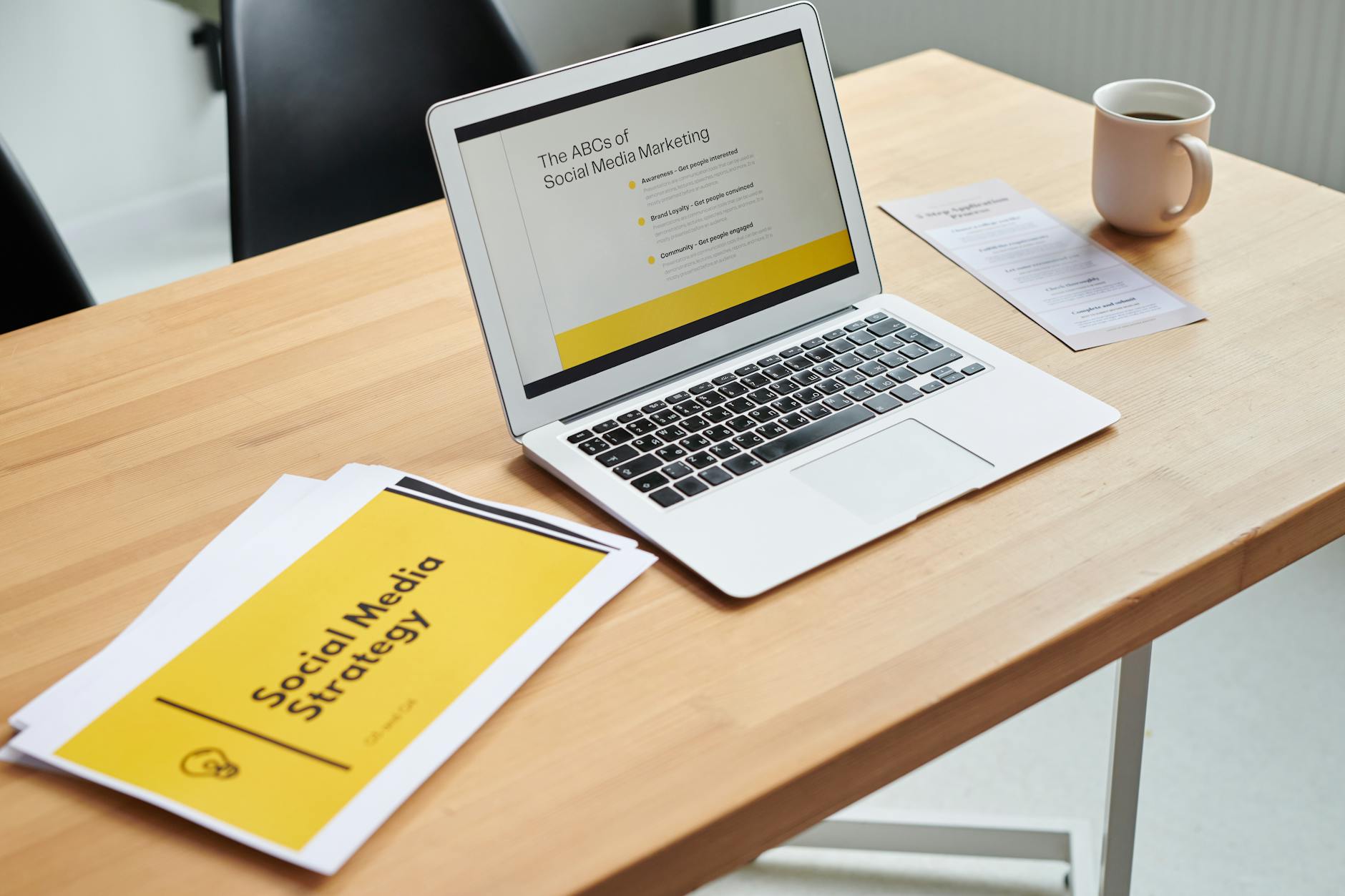
Most businesses run Facebook Lead Ads and manually download lead CSVs, then upload them into their CRM or email tool. That delay costs conversions. Research from InsideSales.com shows that responding to a lead within five minutes makes you 21 times more likely to qualify that lead compared to waiting 30 minutes.
Connecting Zoho Marketing Automation to Facebook Ads eliminates that gap. Here is what the integration enables:
Without this connection, your Facebook ad budget optimises for form fills alone. With it, Meta’s algorithm can optimise for the events that matter: qualified leads, demos booked, and deals closed.
Before starting the integration, confirm you have the following in place:
Zoho offers two native paths for this connection. LeadChain is a built-in connector inside Zoho CRM and Marketing Automation that handles Facebook Lead Ad syncing with minimal setup. Zoho Flow is the general automation platform that can connect any trigger to any action across Zoho and third-party apps. For most users, LeadChain is the faster option. Use Zoho Flow if you need conditional logic, multi-step transformations, or connections to tools outside the Zoho ecosystem. You can also explore no-code automation with Zoho Flow for more complex routing scenarios.
The connection process follows three stages: authenticate, select the ad form, and choose the destination list.
Open Zoho Marketing Automation and navigate to Settings, then Integrations, then Facebook Lead Ads (or use the LeadChain extension if routing through Zoho CRM first). Click Connect Facebook Account, sign in with the Facebook profile that has admin access to the Business Manager, and grant the requested permissions. Zoho needs access to your Pages, Ad Accounts, and Lead Ad forms to pull data in real time.
After authentication, choose the Ad Account and Facebook Page you want to sync. Zoho will display all active Lead Ad forms associated with that page. Select the form you want to connect. If you run multiple forms for different campaigns, repeat this step for each one, mapping each to a distinct contact list or topic list in Zoho.
Pick the Zoho Marketing Automation mailing list where new leads should land. You can also set a tag (for example, “FB-Lead-Ad-Q1-2026”) so these contacts are easy to filter later. If Zoho CRM is connected, you can simultaneously push leads to the CRM Leads module and associate them with a CRM campaign for pipeline tracking.
Field mapping determines which Facebook form fields land in which Zoho contact fields. Getting this right is critical, as mismatched fields result in blank records or lost data.
Facebook Lead Ad forms collect standard fields (first name, last name, email, phone number) plus any custom questions you add. Zoho will auto-map standard fields where the names match. Review each mapping and confirm:
| Facebook Form Field | Zoho Contact Field | Notes |
|---|---|---|
| First Name | First Name | Auto-mapped |
| Last Name | Last Name | Mandatory for sync |
| Primary identifier | ||
| Phone Number | Phone | Include country code format |
| Company Name | Company | Map to Organisation if using CRM |
| Custom Question: Budget | Custom Field: Budget Range | Create custom field in Zoho first |
| Custom Question: Timeline | Custom Field: Purchase Timeline | Used for lead scoring |
Facebook Lead Ads support hidden fields that capture UTM parameters, ad set name, campaign name, and ad creative ID without the user seeing them. Map these to custom fields in Zoho so you can track exactly which campaign and creative generated each lead. This data feeds directly into your attribution reports later.
LeadChain syncs leads in near real time (typically within 1 to 3 minutes). If a contact with the same email already exists in Zoho, the system updates the existing record rather than creating a duplicate. Confirm that your deduplication rule is set to match on email address, and test with a sample lead before launching your campaign at scale.
Once leads flow into Zoho Marketing Automation, you can trigger automated journeys based on the lead source, form data, or score. This is where the integration delivers real value: the lead gets a personalised response within seconds, not hours.
Create a journey in Zoho Marketing Automation with the trigger “Added to list” for your Facebook Lead Ads list. The first action should be an immediate email confirming their submission and setting expectations. A sample journey flow:
Not all Facebook leads are equal. A lead from a high-intent campaign (pricing page retargeting) is worth more than one from a broad awareness campaign. In Zoho Marketing Automation, set up scoring rules that add points based on:
When a contact crosses your scoring threshold, the journey pushes them to your CRM with all the context attached. Your sales team can then use CRM automation workflows to route the lead to the right rep based on territory, deal size, or product interest.
The Meta Conversions API (CAPI) lets you send server-side events back to Facebook, including offline conversions that happen after the initial lead form submission. This is the most powerful part of the integration because it tells Meta’s ad algorithm which leads turned into actual customers, so future ad delivery targets similar profiles.
Browser-based tracking (the Meta Pixel) misses events that happen outside the browser: phone calls, in-person meetings, CRM stage changes, and closed deals. CAPI fills this gap by sending conversion events directly from your server. Combined with the Pixel, CAPI gives Meta a complete picture of your funnel, improving match rates and reducing cost per acquisition over time.
There are three main paths to send Zoho data to CAPI:
At minimum, send these events back to Meta:
| Event Name | Trigger in Zoho | Why It Matters |
|---|---|---|
| Lead | Lead created in CRM | Confirms form submission was valid |
| CompleteRegistration | Lead qualified (MQL) | Trains algorithm on quality signals |
| Schedule | Demo or meeting booked | Optimises for high-intent actions |
| Purchase | Deal closed won | Sends actual revenue value to Meta |
Include the conversion value in the Purchase event so Meta can optimise for return on ad spend (ROAS), not just lead volume.
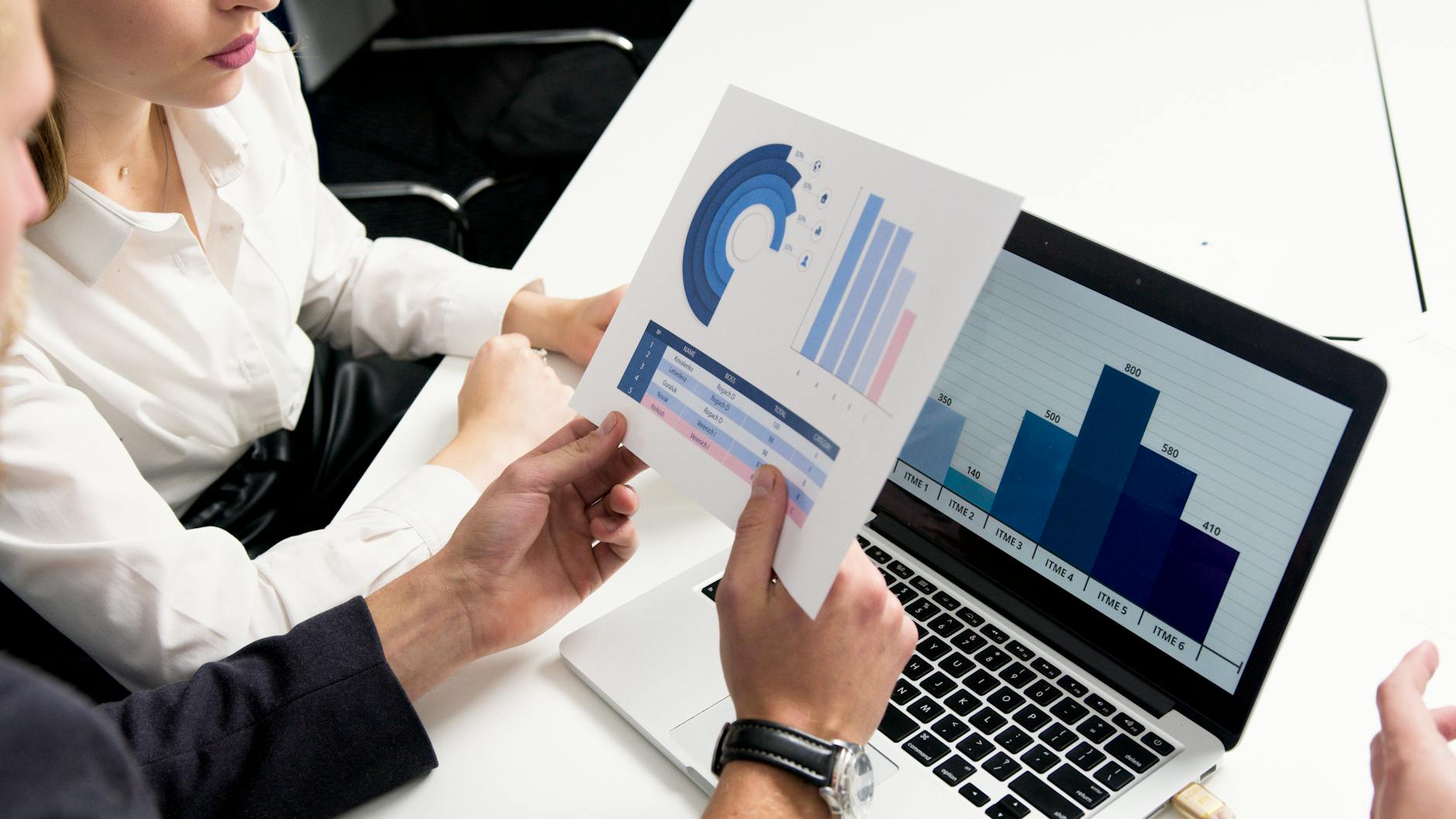
With leads flowing in from Facebook and conversion data flowing back, you can build attribution reports that show the full journey from ad impression to closed deal.
Connect both Zoho Marketing Automation and Zoho CRM to Zoho Zoho Analytics and Google Analytics 4 integration. Create a blended dataset that joins marketing touchpoints (email opens, journey steps, ad source) with CRM pipeline data (deal stage, deal value, close date). Key reports to build:
The hidden fields you mapped earlier (campaign name, ad set name, UTM parameters) make this attribution possible. When a deal closes in CRM, the original UTM data is still attached to the contact record. Zoho Analytics can group closed revenue by UTM campaign, giving you a clear view of which Facebook campaigns generate profit, not just clicks.
The integration works in both directions. Beyond pulling leads in, you can push audience segments from Zoho back to Facebook for retargeting.
In Zoho Marketing Automation, create segments based on engagement data: contacts who opened emails but did not book a demo, contacts who visited your pricing page but did not convert, or contacts whose deals went cold in the CRM. Export these segments as Custom Audiences in Facebook (via Zoho Flow webhook or a third-party connector) to show them targeted ads that address their specific objection or next step.
Your highest-value segment is contacts who became paying customers. Push this list to Facebook as a seed audience and create a Lookalike Audience. Meta will find users with similar demographics, interests, and behaviours, giving you a prospecting pool that mirrors your best customers. Refresh this audience quarterly as your customer base grows. For a broader view of how to manage your social media management with Zoho, pair this with Zoho Social’s publishing and monitoring tools.
Before you spend real ad budget, validate every step of the data flow.
| Problem | Cause | Fix |
|---|---|---|
| Leads not syncing | Facebook token expired or permissions revoked | Re-authenticate in Zoho, re-grant permissions |
| Missing fields | Custom field not created in Zoho before mapping | Create the field in Zoho, re-map, re-test |
| Duplicate contacts | Deduplication rule not set to email | Set dedup to email in Marketing Automation settings |
| CAPI events not matching | Email or phone not hashed correctly | Use SHA-256 hashing, lowercase, trim whitespace before hashing |
| Journey not triggering | Contact added to wrong list | Verify list mapping in LeadChain settings |
Run this validation every time you create a new Lead Ad form or change field mappings. A 10-minute test prevents weeks of lost leads.
For a full overview of all available options, explore our complete guide to Zoho integrations.
Can I connect multiple Facebook Lead Ad forms to different Zoho Marketing Automation lists?
Yes. Create a separate LeadChain connection for each form and map each to a distinct mailing list in Zoho Marketing Automation. This lets you run different nurture journeys for different campaigns or offers.
Does the integration work with Instagram Lead Ads too?
Yes. Instagram Lead Ads use the same backend as Facebook Lead Ads since both run through Meta Ads Manager. Any Lead Ad form connected through LeadChain or Zoho Flow will capture leads from both Facebook and Instagram placements.
What Zoho Marketing Automation plan do I need for journey automation?
You need the Professional plan or higher to create multi-step journey workflows. The Standard plan supports basic autoresponders but not conditional branching or lead scoring integration. Check Zoho’s current pricing page for the latest plan details.
How do I send offline conversion data back to Facebook from Zoho?
Use Zoho Flow to trigger a webhook when a CRM deal stage changes (for example, Closed Won). The webhook sends the conversion event with hashed contact data to Meta’s Conversions API endpoint. Alternatively, use a connector like LeadsBridge or Stape for a no-code setup.
Will Facebook leads sync to Zoho CRM and Marketing Automation at the same time?
Yes, if both systems are connected. LeadChain can push leads to Zoho CRM while the CRM-to-Marketing Automation sync copies them into your mailing list. You can also configure the lead to go directly into Marketing Automation first, then push to CRM only after the lead reaches a certain score.
Aaxonix configures Zoho Marketing Automation integrations with Facebook Ads, including lead sync, journey setup, CAPI offline conversions, and attribution dashboards. Book a free consultation to get a tailored integration plan for your ad campaigns and Zoho stack.
Book a free consultationThe Zoho Marketing Automation and Facebook Ads integration turns a manual, leaky lead process into an automated pipeline where every form submission triggers the right follow-up, every conversion feeds back into ad optimisation, and every dollar of ad spend is traceable to revenue. Start with the lead sync and welcome journey, then layer on CAPI and attribution reporting as your campaigns scale. For teams already running email marketing with Zoho Campaigns, adding Facebook Lead Ad triggers to your existing nurture flows takes minutes. For hands-on help connecting your full Zoho implementation, talk to the Aaxonix team.
Tell us what you are working through and a senior architect from our team will get back to you with a straight answer, usually within a couple of working days. No bot, no hard sell.
A senior architect will get back to you at , usually within a couple of working days. Worth checking your spam folder, just in case.
Track time, expenses, and profitability per project in Zoho Books. Covers hourly billing, milestones, budgets,…

Compare Zoho Recruit and LinkedIn Recruiter on features, pricing, and fit. Find out which tool…

The UAE Peppol participant ID uses format 0235:TIN. How to derive your TIN, why 0235…
Tell us what you are actually trying to do. You will get a straight answer from a senior architect who has done this before, not a sales rep.
A senior architect will get back to you at , usually within a couple of working days. Worth checking your spam folder, just in case.
Ask it now and a senior architect will get back to you, usually within a couple of working days. It goes to our team, not a mailing list.
A senior architect will get back to you at , usually within a couple of working days. Worth checking your spam folder, just in case.