

Blog
How to File GST Returns with Zoho Books: Step-by-Step Guide
Complete guide to filing GSTR-1, GSTR-3B, and annual GST returns using Zoho Books. Covers setup,…
9 min read
Read article →
Zoho Inventory is the inventory and order inventory management best practices application in the Zoho ecosystem. It handles purchase orders, sales orders, stock tracking across multiple warehouses, and integrates directly with Zoho Books for GST-compliant invoicing. This guide walks through the full setup process for Indian businesses.
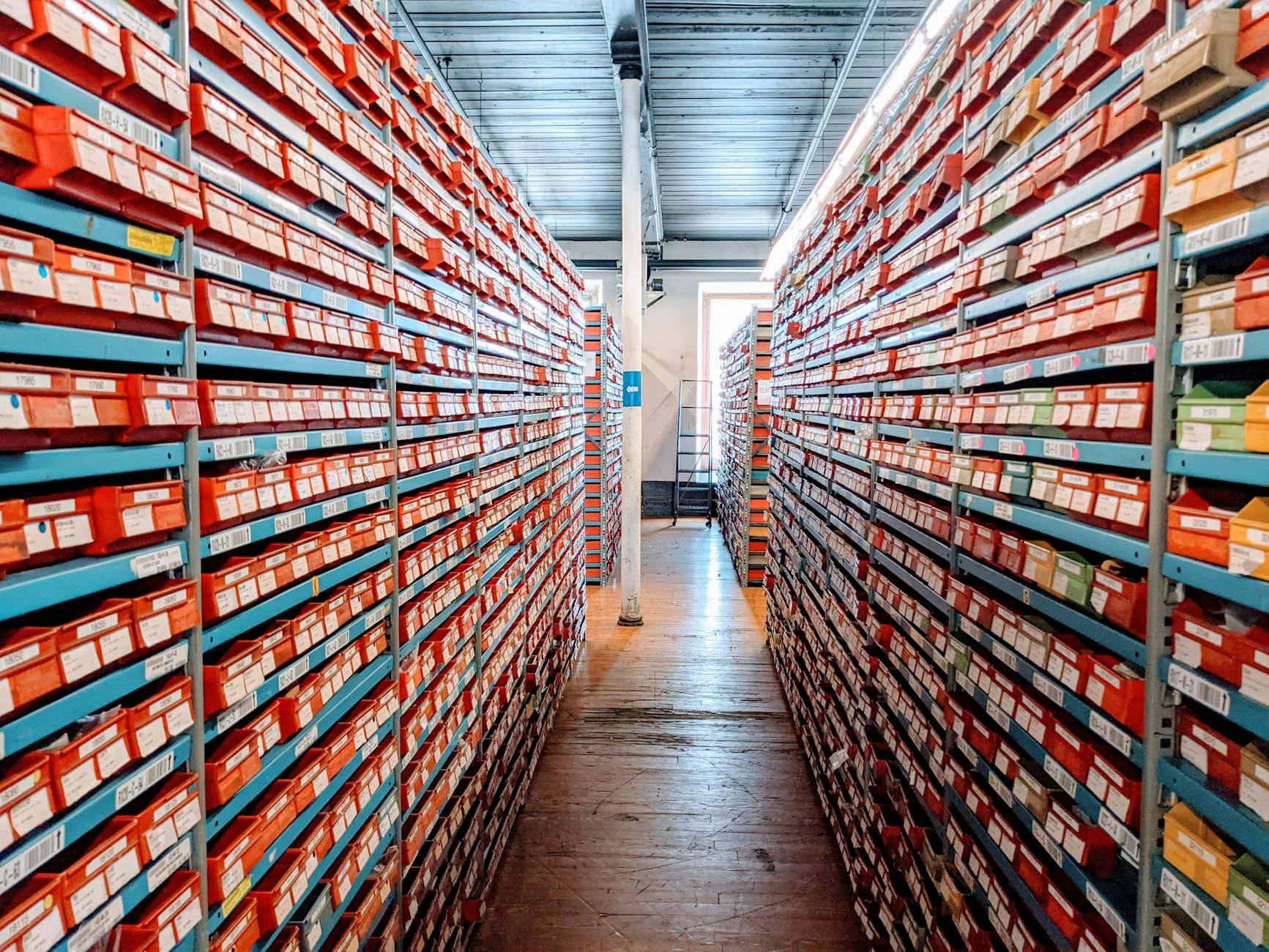
Zoho Inventory is suitable for businesses that buy and sell physical goods, distributors, manufacturers, retailers, and e-commerce businesses. It handles:
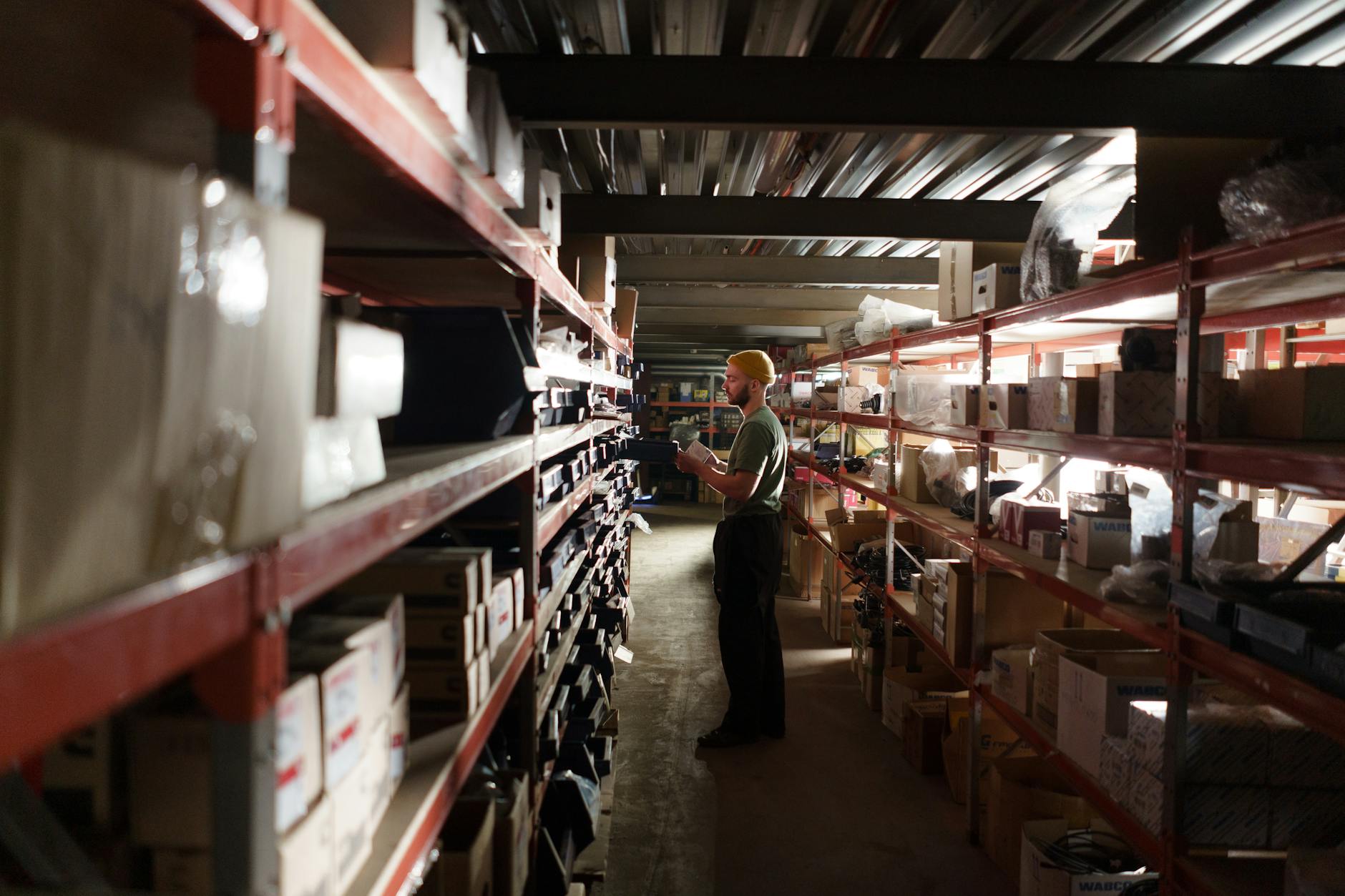
Before adding any stock, configure the organisation basics:
If you operate from a single location, the default warehouse works. For multiple locations:
The item master is the foundation of Zoho Inventory. Each item needs:
For businesses with large catalogues, use the CSV import. Download the template from Items → Import, fill in your item data, and upload. Zoho Inventory validates each row and shows errors before importing. Map your existing SKUs, HSN codes, and prices in the template columns.
Add your suppliers and customers:
The PO-to-stock workflow in Zoho Inventory:
Zoho Inventory and Zoho Books are designed to work together. To connect:
Once connected, every invoice in Zoho Inventory creates a corresponding entry in Zoho Books. Purchase bills sync for ITC. Stock valuation flows into your balance sheet automatically. If you use Zoho CRM, sales orders can be created from CRM deals and pushed to Inventory, closing the loop from lead to delivery.
For businesses that need traceability (electronics, pharmaceuticals, food products):
Enable tracking per item under Item → Edit → Enable Serial/Batch Tracking. Once enabled, every receipt and dispatch records the serial or batch numbers involved.
If you sell on Shopify, Amazon, or Flipkart:
A proper Zoho Inventory setup takes 2-4 weeks depending on catalogue size, warehouse count, and integration complexity. Our Zoho implementation service covers the full setup: item master migration, warehouse configuration, PO/SO workflow design, Zoho Books integration, and staff training.
If you’re already using Zoho One, Inventory is included in your licence at no extra cost. Use our Stack Recommender to check which Zoho apps make sense for your business, or talk to us directly for a scoped implementation plan.
The number depends on your plan: the Professional plan supports 5 warehouses, Premium supports 10, and Elite supports unlimited warehouses. Each warehouse can have its own GST state code, which matters for correctly applying IGST or CGST/SGST on inter-warehouse stock transfers. Inter-warehouse transfers are handled natively with full stock movement history, so you can trace every unit from receipt to dispatch.
Yes. You can buy in cases and sell in pieces using unit conversion, which is common for distributors and FMCG businesses that purchase in bulk packs but sell individual units. Set the conversion factor on each item, for example 1 case equals 12 pieces, and Zoho Inventory automatically recalculates stock levels and costing in both units as transactions are recorded.
Yes. Create a sales order, then generate a purchase order to the supplier with the customer’s delivery address instead of your own warehouse address. Zoho Inventory tracks the drop shipment through to delivery without the goods ever passing through your warehouse, and the transaction still syncs to Zoho Books for GST-compliant invoicing and accounting.
Sales returns create a credit note in Zoho Books and return the stock to the selected warehouse, updating both the customer’s balance and your inventory count. Purchase returns create a debit note and reduce the vendor payable in the same way. Both sides of the return are handled in one workflow, so your accounts and stock records stay in sync without a separate manual adjustment.
Tell us what you are working through and a senior architect from our team will get back to you with a straight answer, usually within a couple of working days. No bot, no hard sell.
A senior architect will get back to you at , usually within a couple of working days. Worth checking your spam folder, just in case.
Complete guide to filing GSTR-1, GSTR-3B, and annual GST returns using Zoho Books. Covers setup,…

Learn how to choose a Zoho implementation partner with our 10-point checklist, key questions to…
How to build Zoho Analytics dashboards that give Indian business owners and managers real insights…
Tell us what you are actually trying to do. You will get a straight answer from a senior architect who has done this before, not a sales rep.
A senior architect will get back to you at , usually within a couple of working days. Worth checking your spam folder, just in case.
Ask it now and a senior architect will get back to you, usually within a couple of working days. It goes to our team, not a mailing list.
A senior architect will get back to you at , usually within a couple of working days. Worth checking your spam folder, just in case.