

Blog
6 Things People Expect Zoho CRM to Do Out of the Box (and How to Actually Make Each One Work)
Zoho CRM out of the box leaves gaps between apps. See 6 things teams expect…
14 min read
Read article →

Project management tools and communication platforms serve different purposes, but they work best when connected. A Zoho Projects Microsoft Teams integration bridges the gap between structured task tracking and real-time team conversations. When a developer finishes a task, the update appears in the relevant Teams channel within seconds. When a project manager reassigns a sprint item during a standup, the notification reaches the right person without switching apps.
Organizations that rely on both Zoho Projects for task planning and Microsoft Teams for daily communication often face a common problem: context switching. Team members toggle between tabs dozens of times per day, checking for updates in one tool that should have surfaced in the other. This integration eliminates that friction by pushing the right information to the right channel at the right time.
The benefits go beyond convenience. Centralizing notifications in Teams creates a searchable record of project activity alongside the conversations that surround it. Sprint retrospectives become easier when you can scroll through a channel and see every status change, comment, and milestone completion in chronological order. If your organization already uses Zoho Projects for project management, adding a Teams connection is one of the highest-value configuration changes you can make.
Zoho Projects offers a built-in connector for Microsoft Teams that requires no third-party middleware. The setup process takes about ten minutes and works with any Zoho Projects plan that includes integrations.
Open Microsoft Teams and navigate to the Apps section in the left sidebar. Search for “Zoho Projects” and select the official app published by Zoho Corporation. Click Add and choose the team or channel where you want the integration active. You will need to authenticate with your Zoho account credentials during this step.
Once installed, open the Zoho Projects tab in your chosen channel. Select the Zoho Projects portal and the specific project you want to connect. You can map notification types to channels with granular control:
Each project in Zoho Projects can connect to a different Teams channel, so multi-project organizations can keep their notifications organized. The connector supports selective event types, meaning you only receive the updates that matter for each channel’s audience.
Create a test task in Zoho Projects and assign it to a team member. Within a few seconds, the notification should appear in the mapped Teams channel with the task name, assignee, due date, and a direct link back to the task in Zoho Projects. If the notification does not arrive, verify that your Zoho account has the correct permissions and that the Teams channel allows incoming connectors.
The native connector handles standard notifications well, but many teams need more advanced automation. Zoho Flow fills that gap by letting you build multi-step workflows between Zoho Projects and Microsoft Teams without writing code.
A common workflow sends a formatted Teams message whenever a task is assigned in Zoho Projects. In Zoho Flow, create a new flow with Zoho Projects as the trigger app. Select “Task Assigned” as the trigger event and connect your Zoho Projects account. For the action step, choose Microsoft Teams and select “Send Channel Message.” Map the task fields to the message template:
For teams running agile sprints, you can create a scheduled flow that pulls sprint data from Zoho Projects every morning and posts a summary to your standup channel. The flow queries the active sprint, counts tasks by status (open, in progress, completed), and formats the data into a Teams Adaptive Card. This gives the team a snapshot of sprint health before the daily standup even begins.
You can also build conditional flows that escalate overdue tasks. If a task passes its due date without being marked complete, the flow sends a direct message to the assignee and a notification to the project manager’s channel. This type of proactive alerting prevents tasks from silently slipping through the cracks.
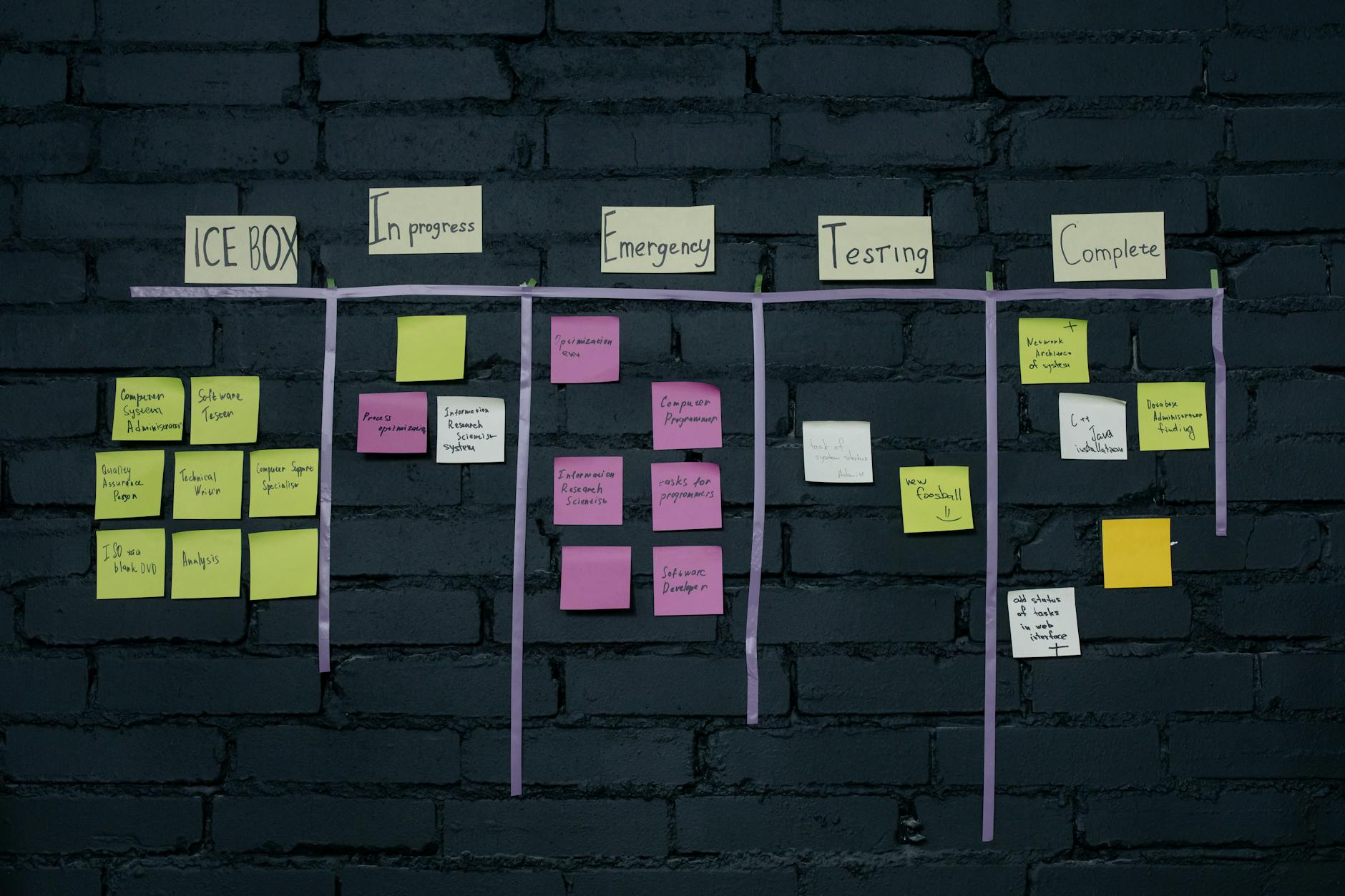
How you organize your Teams channels around Zoho Projects data determines how useful the integration becomes. A flat structure where all notifications pour into a single channel creates noise. A well-planned channel map turns Teams into a real-time project dashboard.
Create separate channels for each functional area of your project. A software development project might use channels like “Dev-Sprint-Updates,” “QA-Issues,” and “Design-Reviews.” Map Zoho Projects task lists to the corresponding channel so that front-end tasks generate notifications in the front-end channel and back-end tasks appear in the back-end channel.
For organizations that follow a sprint cadence, create a new channel for each sprint or release cycle. Archive completed sprint channels to keep the workspace clean. This approach works well when combined with the sprint tracking workflows used in agile project management.
| Event Type | Recommended Channel | Frequency |
|---|---|---|
| Task Created | Project-General | Per event |
| Task Assigned | Team-Specific | Per event |
| Status Changed | Sprint-Updates | Per event |
| Milestone Completed | Leadership | Per event |
| Sprint Summary | Standup | Daily (scheduled) |
| Overdue Escalation | PM-Alerts | Conditional |
This structure ensures that leadership sees high-level progress without being flooded by individual task updates, while developers receive the granular notifications they need to stay coordinated.
One of the most valuable but underused capabilities of this integration is turning meeting action items into tracked tasks. During a Teams meeting, participants identify action items in the chat. After the meeting, a Zoho Flow workflow or manual process converts those items into Zoho Projects tasks with assignees, due dates, and priority levels.
With the Zoho Projects bot installed in Teams, any team member can type a command in the chat to create a task. The bot prompts for the task name, project, task list, assignee, and due date. The created task appears in Zoho Projects immediately, and the confirmation message in Teams includes a direct link to the task for further editing.
For a more structured approach, build a Zoho Flow that listens for messages tagged with a specific keyword (such as “#action”) in your meeting channel. When the flow detects the tag, it creates a Zoho Projects task using the message content as the task description and posts an Adaptive Card back to the channel with the task details. Team members can click buttons on the card to set the priority or change the assignee without leaving Teams.
This meeting-to-task pipeline ensures that decisions made during calls translate into tracked, accountable work items. It also creates a clear audit trail linking the original meeting discussion to the resulting project task, which is useful for compliance-sensitive industries.
Beyond notifications, the Zoho Projects Microsoft Teams integration supports deeper data synchronization that keeps sprint boards and status dashboards current across both platforms.
Microsoft Teams supports tab-based applications, and Zoho Projects can be added as a tab in any channel. Pin your sprint board, Gantt chart, or task list view directly in the Teams channel so team members can check project status without navigating away. The embedded view updates in real time, reflecting any changes made in Zoho Projects.
This is particularly effective for standup meetings conducted in Teams. The facilitator shares the embedded sprint board in the meeting, and the team reviews task status, identifies blockers, and reassigns work – all while the Zoho Projects data updates live. Organizations that have already configured their Zoho Projects and GitHub integration can see code commits linked to tasks in the same sprint view.
Using Zoho Flow or Microsoft Power Automate connectors, you can create bidirectional sync between Teams and Zoho Projects. When a developer posts a status update in Teams (such as “Task X is done”), the automation detects the update pattern and marks the corresponding Zoho Projects task as complete. Conversely, when a task status changes in Zoho Projects, the update appears in Teams. This two-way sync reduces the chance of status information being stuck in one platform.

Connecting two business-critical platforms requires attention to security and access control. Here are the key considerations for a production-grade Zoho Projects Microsoft Teams integration.
The integration uses OAuth 2.0 for authentication between Zoho and Microsoft 365. Ensure that the account used to establish the connection has appropriate permissions in both platforms. In Zoho Projects, the connecting user needs at least “Manager” role access to the projects being synced. In Microsoft Teams, the user needs permission to add apps and configure connectors for the target channels.
Consider what project data appears in Teams notifications. Task names, assignee information, and comments are visible to anyone in the channel. If your projects contain sensitive information, use private channels and restrict membership. Review the Zoho Projects API documentation to understand exactly which fields are exposed through the connector.
Both Zoho and Microsoft impose API rate limits. If your organization has hundreds of active tasks changing status throughout the day, monitor for throttling. Zoho Flow workflows count against your Zoho Flow task quota, so plan your automation volume accordingly. For high-volume environments, batch notifications into periodic digests rather than sending individual alerts for every change.
Organizations managing complex implementations across multiple Zoho products often benefit from working with a certified Zoho implementation partner to design an integration architecture that scales with their needs. Similarly, teams that use the Zoho CRM and Microsoft Teams integration alongside the Projects connector should coordinate their channel strategy to avoid notification overlap.
Need help setting up your Zoho Projects and Microsoft Teams integration? Our certified Zoho consultants can design and deploy a connected workflow tailored to your team structure.
Talk to a Zoho ExpertTell us what you are working through and a senior architect from our team will get back to you with a straight answer, usually within a couple of working days. No bot, no hard sell.
A senior architect will get back to you at , usually within a couple of working days. Worth checking your spam folder, just in case.
Zoho CRM out of the box leaves gaps between apps. See 6 things teams expect…

Compare Zoho Recruit, Bullhorn, and Ceipal for staffing agencies. Features, pricing, and which platform fits…

On this page HR teams manage the employee lifecycle in Zoho People: onboarding, leaves, performance…
Tell us what you are actually trying to do. You will get a straight answer from a senior architect who has done this before, not a sales rep.
A senior architect will get back to you at , usually within a couple of working days. Worth checking your spam folder, just in case.
Ask it now and a senior architect will get back to you, usually within a couple of working days. It goes to our team, not a mailing list.
A senior architect will get back to you at , usually within a couple of working days. Worth checking your spam folder, just in case.