

Blog
Zoho Payroll for Indian Businesses: PF, ESI, TDS Setup Guide
Complete guide to setting up Zoho Payroll for Indian businesses: PF, ESI, TDS computation, salary…
11 min read
Read article →
For Indian exporters, the GST framework creates a specific set of bookkeeping requirements that most general-purpose accounting guides do not cover in detail. Getting the zoho books export invoice gst zero rated workflow right means understanding which export type to select, when a Letter of Undertaking applies, how to record foreign currency receipts, and how your invoice data flows into GSTR-1 Table 6A. Miss any one of these steps and you face either a working capital blockage from unnecessary IGST payments or a compliance gap that surfaces during a GST audit. This guide walks through each part of that workflow using the Zoho Books accounting platform, with exact settings, field names, and report paths so your finance team can set this up correctly the first time.

Under the GST Act, exports of goods and services are classified as zero-rated supplies under Section 16 of the IGST Act. Zero-rated does not mean exempt. The distinction matters because an exempt supplier cannot claim input tax credit, whereas a zero-rated exporter can claim a refund of the ITC accumulated on inputs used for export production.
When you create an export invoice in Zoho Books, you must choose one of two supply types:
| Export Type | How it works | When to use |
|---|---|---|
| Export with Payment of IGST | IGST is charged on the invoice at the applicable rate. The supplier pays this tax and later claims a refund from the GST portal. | New exporters without a LUT, or exporters who prefer to claim a cash refund rather than use ITC. |
| Export without Payment of IGST (LUT) | Invoice is raised at zero tax. No IGST is collected or paid. The LUT number is cited on the invoice as proof of eligibility. | Exporters holding a valid LUT for the financial year. This is the standard route for regular exporters. |
LUT eligibility is broad. Any GST-registered exporter who has not been prosecuted for tax evasion exceeding Rs. 2.5 crore can apply. The application is filed online through the GST portal (Form RFD-11) and the approval is instant in most cases. The LUT is valid for one financial year and must be renewed each April. For context on how this interacts with e-invoicing thresholds, see the guide on GST e-invoicing in Zoho Books.
Before you can raise a zero-rated export invoice in Zoho Books, you need to enter your LUT details in the application. Zoho Books stores the LUT number and prints it on export invoices automatically once configured.
Zoho Books will now print the LUT number in the GST details block of every export invoice where you select Export without Payment of IGST. If you export to both SEZ units and overseas buyers, the same LUT covers SEZ supplies under the same zero-rated treatment.
One common configuration gap: if your company has multiple GSTINs registered in Zoho Books (for instance, separate registrations for Maharashtra and Karnataka), you need to add the LUT under each GSTIN separately. The LUT you receive from the GST portal is tied to the specific GSTIN that applied, so a Maharashtra GSTIN LUT cannot be used when raising invoices from the Karnataka branch.
For a full walkthrough of your initial GST configuration, the complete Zoho Books setup guide covers all the foundational settings before you get into export-specific configuration.
Most Indian exporters invoice in USD, EUR, GBP, or AED depending on their buyer’s country. Zoho Books handles multi-currency invoicing natively, but there are specific fields required by customs and GST regulations that you need to populate correctly.
Before creating your first foreign currency invoice, enable the currency in Settings, then Currencies. Set the exchange rate to the RBI reference rate for the invoice date. Zoho Books supports both a fixed rate per invoice and an auto-fetched rate, but the GST portal expects the RBI rate, so avoid using a bank-quoted rate unless it matches the RBI published figure for that date.
| Field | Where to set in Zoho Books | Compliance purpose |
|---|---|---|
| Customer type | Customer master, GST treatment field | Must be set to “Overseas” for goods/services or “SEZ” for SEZ supplies |
| Export type | Invoice creation screen, GST details section | Choose “With Payment of IGST” or “Without Payment (LUT)” |
| Place of Supply | Invoice creation screen | For goods exports, set to the state from which goods are dispatched. For service exports, typically the exporter’s state. |
| Port Code | Invoice creation screen, Shipping details | Required for goods exports. 6-digit code from the customs tariff schedule. |
| Shipping Bill Number and Date | Invoice creation screen, Shipping details | Mandatory for GSTR-1 Table 6A after goods clear customs |
| Currency and Exchange Rate | Invoice creation screen, top section | RBI rate on invoice date; stored for GSTR-1 INR conversion |
Service exporters do not need port codes or shipping bill numbers. However, they do need to ensure the customer’s country is set correctly in the customer master and that Place of Supply reflects the export destination rather than a domestic state. Zoho Books uses this to determine whether the transaction qualifies as an export of services under the IGST Act conditions, which include that the supplier and recipient are not in the same establishment.
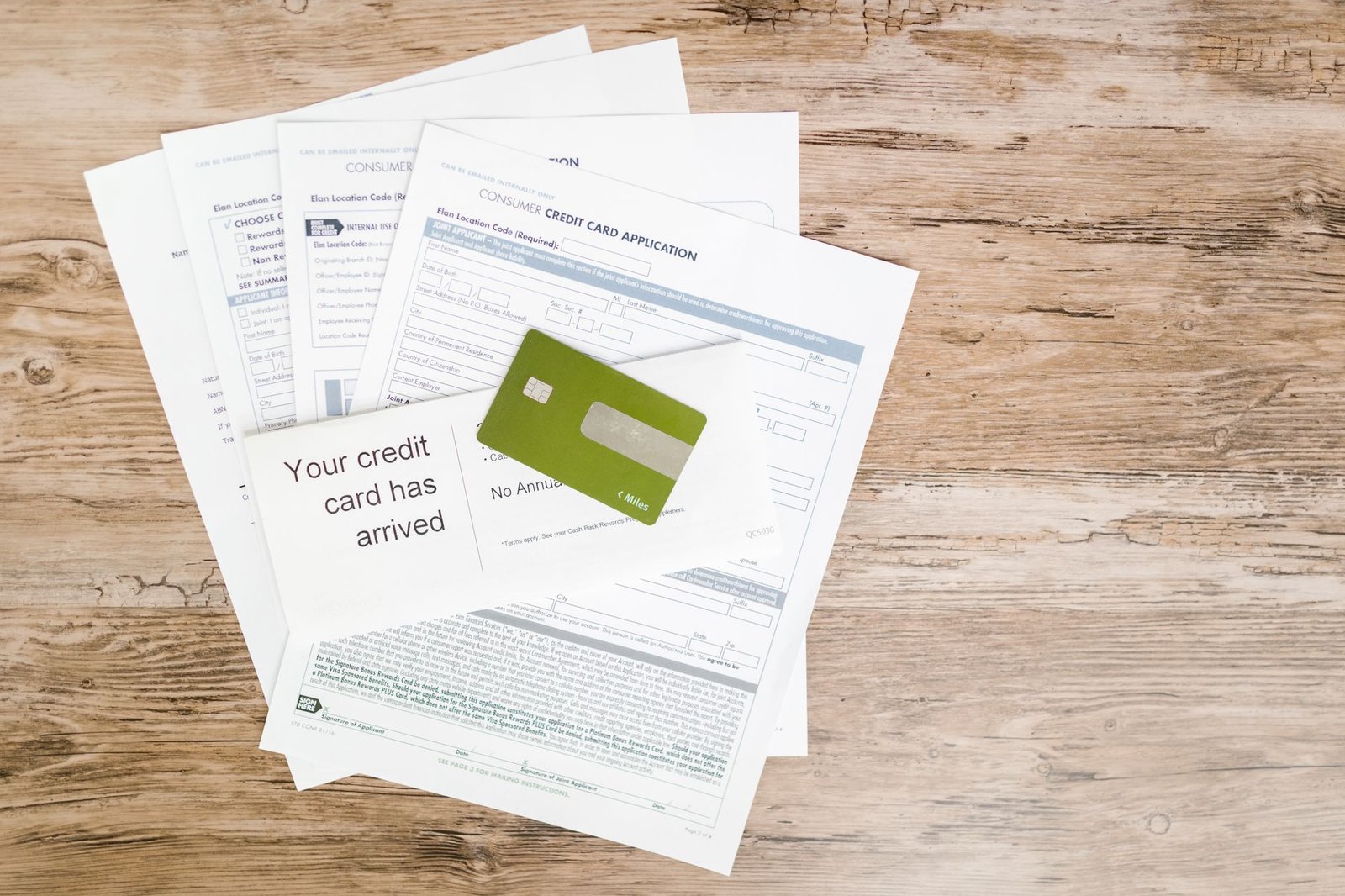
When a foreign buyer pays your invoice, their bank sends the money through SWIFT to your Indian bank. Your bank then credits the equivalent INR amount to your account after converting at the prevailing rate. The documentary proof of this inward remittance is what the GST department and DGFT require for export benefit claims.
A Foreign Inward Remittance Certificate was the physical document banks issued to confirm receipt of foreign currency. Since 2016, the Reserve Bank of India replaced this with the electronic Bank Realisation Certificate, issued through the DGFT eBRC portal. Your bank uploads the remittance data to DGFT, and you download the eBRC from the portal. The eBRC is the accepted document for GST export refund claims, SEIS benefit applications under the Foreign Trade Policy, and audits. Some private banks still issue a physical FIRC on request alongside the eBRC.
Zoho Books marks the invoice as paid and posts the INR equivalent to your bank account ledger. For thorough month-end close, the guide on bank reconciliation for export receipts covers how to match these entries against your bank statement systematically, including handling advance payments and partial receipts.
If a buyer sends an advance before you raise the invoice, record it as a Retainer Invoice in Zoho Books against the customer. When the final invoice is raised, apply the retainer. Zoho Books handles the exchange rate differential between the advance receipt date and the invoice date and posts it correctly. For GST purposes, advance receipts for export of goods are not liable to tax at the time of receipt, but advance receipts for export of services require careful handling depending on whether the services qualify as export of services or are treated as domestic supply.
Table 6A of GSTR-1 is the dedicated section for export invoices. It requires invoice number, invoice date, taxable value in INR, the integrated tax amount (zero for LUT invoices), and for goods exports, the shipping bill number and port code. Errors in this table can delay GST refund processing and create mismatches with ICEGATE customs data.
Zoho Books generates a GSTR-1 report that pre-fills Table 6A from your export invoices. To view it, go to Reports, then GST Reports, then GSTR-1, and select the filing period. The system pulls invoice number, date, customer country, taxable value (in INR at the invoice exchange rate), and shipping bill details from the fields you entered during invoice creation.
For a complete walkthrough of the monthly filing process, the guide on filing GST returns in Zoho Books covers Table 6A alongside B2B and B2C tables so you can handle the full return without switching between systems.
These are the errors that appear most often in GST audits and GSTR-1 mismatches for Indian exporters using Zoho Books:
If your LUT is configured in Zoho Books but the invoice export type is still set to With Payment of IGST, you will charge your overseas buyer tax they did not expect to pay, and you will create an unnecessary refund claim. Double-check the export type field every time you raise a new series of invoices, especially at the start of each financial year after renewing the LUT.
For software, consulting, or design services exported to overseas clients, the Place of Supply should not be automatically set to the buyer’s country. Under GST rules, the Place of Supply for services to overseas recipients who are not registered in India is the location of the supplier (your state). Setting it incorrectly to a different Indian state will create an intra-state transaction treated as a domestic supply, pulling the invoice out of Table 6A entirely.
Port codes are six-digit numbers identifying the customs port through which your goods exit India. Common examples: INMAA1 for Chennai Sea, INDEL4 for Delhi Air, INNSA1 for Nhava Sheva. Zoho Books has a port code field in the shipping details section of the invoice. Leaving it blank means ICEGATE cannot match your invoice to the shipping bill, which holds up the GSTR-1 auto-population from customs data and delays refund processing.
Using the invoice exchange rate instead of the actual bank credit rate when recording payment creates an incorrect foreign currency gain or loss and misrepresents your actual INR receipts in the P&L. Always enter the rate your bank used when crediting your account, which you can find on the bank statement credit entry or the SWIFT credit advice.
The eBRC is your primary document for proving that export proceeds were realised within the required timeframe (currently 9 months for goods, 12 months for services under FEMA guidelines). Attaching it to the payment record in Zoho Books at the time of recording means you have an audit trail tied directly to the invoice and payment, rather than having to search through a separate folder of bank documents months later.
Can I raise an export invoice in Zoho Books without a LUT if I am a new exporter?
Yes. If you do not have a LUT, select Export with Payment of IGST as the export type when creating the invoice. Zoho Books will apply IGST at the standard rate, and you can claim a refund of that tax from the GST portal after filing. However, most exporters prefer to apply for a LUT on the GST portal (Form RFD-11) before starting exports, because paying IGST upfront blocks working capital for weeks until the refund is processed.
Does Zoho Books automatically handle the conversion of USD to INR for GST reporting?
Yes. When you create an invoice in a foreign currency, Zoho Books applies the exchange rate you enter at the time of invoicing. For GST purposes, the taxable value in your GSTR-1 is converted to INR using the RBI reference rate for that date. Zoho Books stores both the foreign currency amount and the INR equivalent, so your GST reports pull the correct converted figures without manual calculation.
What is the difference between an FIRC and a bank credit advice for GST purposes?
Traditionally, banks issued a paper Foreign Inward Remittance Certificate confirming that foreign currency was received from abroad. Since 2016, the RBI replaced physical FIRCs for most transactions with electronic Bank Realisation Certificates available via DGFT’s eBRC portal. For GST export refund claims and proof of export of services, both documents serve the same purpose. Most GST officers and CA firms accept the eBRC printout. Some private sector banks still issue an FIRC on request for contractual purposes.
How do I handle a situation where a client pays more than the invoice amount due to exchange rate movement?
Record the payment for the exact foreign currency amount received. Zoho Books will calculate the INR equivalent using the exchange rate on the receipt date. The difference between the INR value at invoice date and at payment date is posted automatically as a foreign currency gain or loss in your books. This is a reporting entry only and does not affect your GST liability, because GST on export invoices is zero-rated or nil.
Where in Zoho Books do I find the export turnover figure to cross-check with my GSTR-1?
Go to Reports, then Business Overview, then Sales by Customer, and filter by date range and customer type Export. You can also run the GSTR-1 report directly (Reports, GST Reports, GSTR-1) and look at Table 6A, which shows all export invoices for the period. Cross-check the total taxable value in 6A against your Sales by Customer export filter. If the numbers differ, look for invoices where the customer type was set incorrectly to Registered or Unregistered instead of Export.
Aaxonix configures Zoho Books for Indian exporters, covering LUT setup, multi-currency invoicing, FIRC reconciliation, and GSTR-1 export table accuracy. Book a free consultation to review your current export billing setup and identify any compliance gaps before your next GST filing.
Book a free consultationGetting the zoho books export invoice gst zero rated workflow right comes down to configuring each layer correctly before the first invoice goes out: LUT details in GST settings, customer type set to Overseas, exchange rates from the RBI, and shipping bill data entered at dispatch. Once those inputs are in place, Zoho Books handles the GSTR-1 Table 6A population automatically and gives your finance team a single report path from invoice to return filing without manual reconciliation.
Tell us what you are working through and a senior architect from our team will get back to you with a straight answer, usually within a couple of working days. No bot, no hard sell.
A senior architect will get back to you at , usually within a couple of working days. Worth checking your spam folder, just in case.
Complete guide to setting up Zoho Payroll for Indian businesses: PF, ESI, TDS computation, salary…
Learn how to build NetSuite SuiteFlow workflows without code. Step-by-step guide to states, triggers, approval…

The UAE e-invoicing deadline 2027 is not one date. See the full official timeline and…
Tell us what you are actually trying to do. You will get a straight answer from a senior architect who has done this before, not a sales rep.
A senior architect will get back to you at , usually within a couple of working days. Worth checking your spam folder, just in case.
Ask it now and a senior architect will get back to you, usually within a couple of working days. It goes to our team, not a mailing list.
A senior architect will get back to you at , usually within a couple of working days. Worth checking your spam folder, just in case.