

Blog
Zoho vs NetSuite: Which Platform for Your Indian Business?
Zoho vs NetSuite compared for Indian businesses: features, cost (INR), complexity thresholds, and when to…
8 min read
Read article →
For most Indian SMBs, accounts payable is where cash flow problems quietly begin. Bills arrive from vendors, get logged in a spreadsheet or worse, a paper folder, and by the time the finance team realises a payment is overdue, the vendor relationship is strained and the GST credit is at risk. Zoho Books accounting software brings the entire AP cycle, from bill entry to payment run to aging analysis, into one connected system. This post covers how zoho books accounts payable works in practice: recording bills, setting payment terms, handling TDS and GST, making bulk payments, and using aging reports to keep outstanding payables under control.
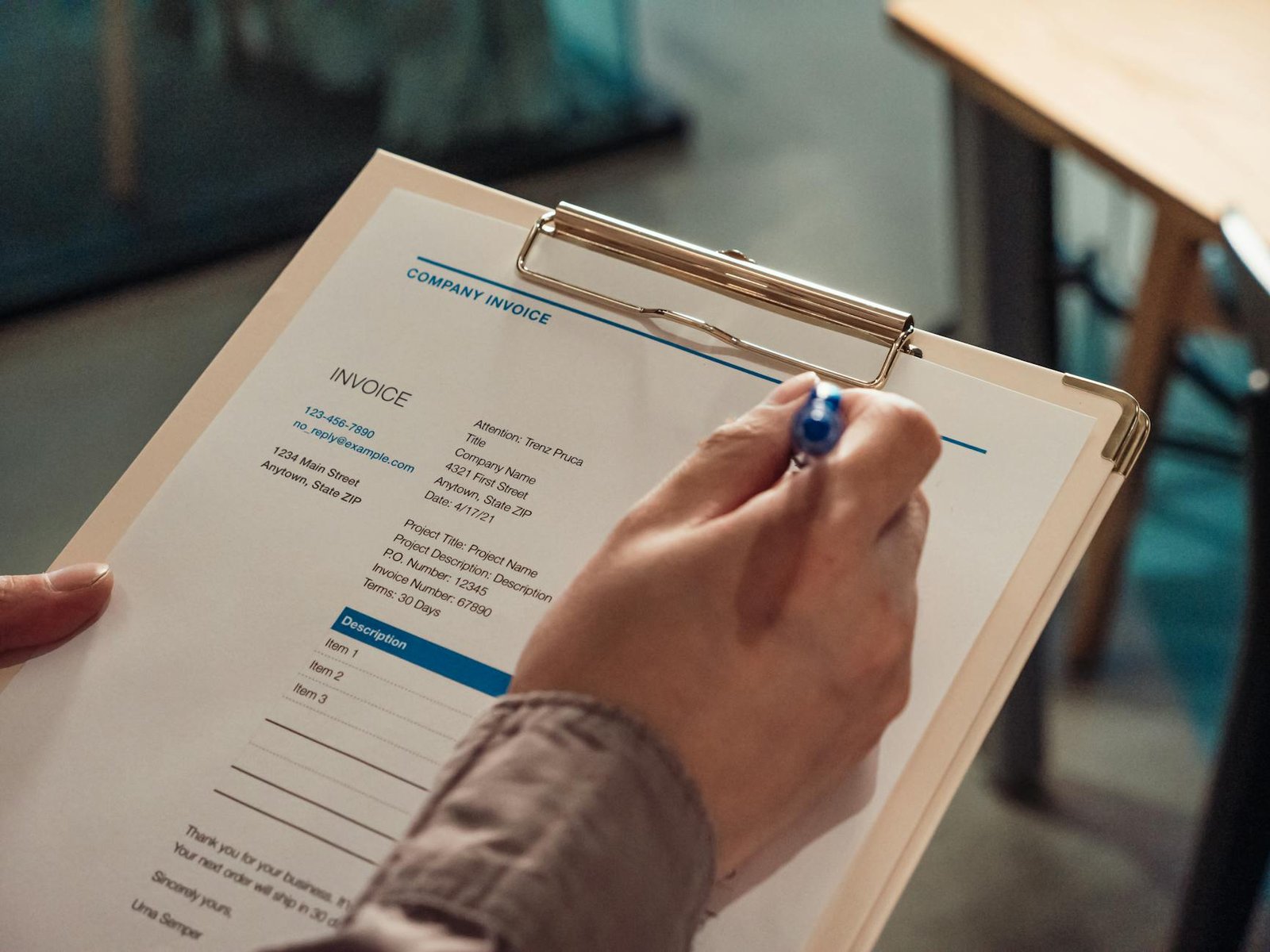
Zoho Books organises the AP function around four core objects: vendor bills, payments made, vendor credits, and debit notes. Together they give finance teams a complete picture of what is owed, to whom, and when.
All four objects feed into the AP aging report and the vendor ledger. When a bill is paid, the liability clears. When a credit is applied, it reduces the outstanding balance without a cash movement. This separation keeps reconciliation clean and your books accurate at month end.
Zoho Books also tracks vendor balances across GST categories, GSTIN-wise if needed, which matters when claiming input tax credit on business purchases. The AP module integrates directly with the purchase order workflow, so bills created from approved POs carry forward all line-item details without re-entry.
Bills enter the system either manually, from a purchase order, or via email import if you have Zoho Books configured to accept vendor email addresses. Managing purchase orders in Zoho Books is the recommended starting point because it means bills auto-populate with the correct vendor, items, rates, and tax codes once a PO is approved and goods are received.
Go to Purchases, then Bills, and click New Bill. Select the vendor, enter the bill date, bill number (as printed on the vendor’s invoice), and due date. Add line items with the appropriate HSN/SAC codes and GST rates. Zoho Books calculates CGST, SGST, or IGST automatically based on whether the vendor’s GSTIN is in the same state as your organisation’s primary GSTIN.
If your organisation uses multi-level approval before a bill is posted to the books, enable approval workflows under Settings, then Workflows. You can configure rules such as: any bill above Rs 50,000 requires CFO approval before it moves from Draft to Open status. Until a bill is approved and Open, no payment can be recorded against it. This prevents premature payments and creates an audit trail showing who approved which vendor liability.
Upload the vendor’s PDF invoice directly to the bill record. Zoho Books stores it as an attachment, which is visible during audits and during GST reconciliation when matching GSTR-2B data with your purchase register. For businesses filing GSTR-3B monthly, this document trail reduces the time spent hunting for bills during reconciliation.
Payment terms in Zoho Books define when a vendor bill becomes due. Standard terms like Net 30, Net 45, or Due on Receipt can be set at the vendor level, so every new bill for that vendor defaults to the correct term automatically.
To configure vendor-level terms, open the vendor record under Contacts, click Edit, and set the Payment Terms field. From that point forward, new bills for that vendor pre-fill the due date based on the bill date plus the term period. You can override the due date on any individual bill if a vendor offers different terms for a specific transaction.
The Zoho Books home dashboard includes an Accounts Payable summary widget showing bills due in the next 7 days, the next 30 days, and overdue amounts. Finance teams can see at a glance whether any vendor payments need immediate action, without opening a report. Clicking any figure takes you directly to the filtered bill list.
Beyond vendor reminders (which apply to AR), Zoho Books allows you to set internal alerts for AP due dates via workflow automation. A rule can notify your accounts team by email or Zoho Cliq message three days before a bill crosses its due date, reducing the chance of late payment and the associated vendor penalties.
Recording a payment in Zoho Books is a two-step process: selecting the bill or bills to pay, and specifying the bank account and payment date. The system updates the vendor ledger and reduces the liability immediately.
Open the bill and click Record Payment. Enter the amount paid (which can be a partial amount for installment scenarios), the payment date, the bank account used, and an optional reference number such as the NEFT/RTGS transaction ID. Zoho Books marks the bill as Partially Paid or Paid depending on whether the full amount was settled.
For businesses paying multiple vendors at the end of the month, the bulk payment option under Purchases, then Payments Made, lets you select several bills across multiple vendors and record payments in a single batch. Each payment is still linked to its individual bill, so the audit trail remains complete. This is particularly useful for businesses that consolidate vendor payments on a fixed date each month to optimise cash float.
When a vendor requires advance payment before raising a bill, record it as a vendor advance under Payments Made without linking it to a bill. Once the vendor raises the bill, apply the advance against it. The net payable reduces accordingly. This pattern is common in Indian manufacturing and construction where vendors demand 20-30% advance before dispatching materials.
Vendor credits arise when you return goods, when a vendor corrects an overcharge, or when a discount is applied after a bill is already posted. Debit notes are the documents you raise to formally notify the vendor of the return or dispute.
To record a vendor credit in Zoho Books, go to Purchases, then Vendor Credits, and create a new credit linked to the vendor. Add the line items being returned with the original GST rates. Zoho Books generates the credit note and reverses the input tax credit claimed on the original bill. You can then apply the credit against any open bill from the same vendor, reducing the cash outflow for that payment cycle.
For GST purposes, vendor credits must be matched against the corresponding GSTR-2B entries. Zoho Books flags credits in the purchase register so your CA or tax consultant can reconcile them during the quarterly filing process.
The AP aging report is the primary tool for understanding which vendor bills are current, which are approaching due date, and which are already overdue. Zoho Books provides this report under Reports, then Payables, then Accounts Payable Aging Summary or Detail.
The default aging report groups outstanding bills into time buckets: Current (not yet due), 1-30 days overdue, 31-60 days overdue, 61-90 days overdue, and above 90 days overdue. Each row shows a vendor name, total outstanding, and the amount falling into each bucket.
| Aging Bucket | What It Means | Action Required |
|---|---|---|
| Current | Bill raised, not yet due | Schedule payment before due date |
| 1-30 days overdue | Missed due date recently | Pay immediately or negotiate extension |
| 31-60 days overdue | Significant delay | Escalate to management, risk of vendor hold |
| 61-90 days overdue | Vendor relationship at risk | Formal communication and payment plan |
| Above 90 days | Critical overdue, potential legal exposure | Immediate resolution with legal review |
You can filter the aging report by vendor, by bill date range, or by currency. The Detail view shows individual bill numbers rather than vendor totals, useful when a vendor has ten bills outstanding and you need to identify which specific ones are overdue. Export to Excel or PDF for sharing with management or your CA.
Run the aging report at the start of each week and cross-reference it with your bank balance. Bills falling due in the next 10 days that exceed your available cash flag a liquidity gap early enough to arrange a short-term credit line or negotiate deferred terms with vendors.
Indian AP compliance adds two layers that businesses in other countries do not face: GST on purchases and TDS deduction on eligible vendor payments.
When you record a vendor bill, Zoho Books calculates GST automatically based on the HSN/SAC code and the tax rate assigned to each line item. For intra-state purchases, it splits the tax into CGST and SGST. For inter-state purchases from vendors in a different state, it applies IGST. The input tax credit (ITC) on eligible bills accumulates in your GST module and is available for offset against output GST liability in GSTR-3B.
For setting up Zoho Books for Indian businesses, correct GST configuration at the organisation and vendor level is essential before any bills are recorded. If a vendor is unregistered (URD), Zoho Books can apply reverse charge mechanism (RCM) automatically when that flag is set on the vendor profile.
Under the Income Tax Act, payments to vendors for services, rent, professional fees, and contract work above specified thresholds require TDS deduction at source. Zoho Books handles TDS by letting you assign a TDS section code to each bill line item. When the payment is recorded, Zoho Books calculates the TDS amount, reduces the cash outflow to the vendor by that amount, and books the TDS payable to the government as a separate liability.
You can generate TDS reports from Zoho Books to support Form 26Q quarterly filing. The vendor-wise TDS summary shows total payments, total TDS deducted, and TDS certificates issued, which vendors need for their own income tax filing.
Manual AP management at scale is error-prone. Zoho Books workflow automation removes repetitive steps and enforces consistent processes without requiring manual intervention each time. For a deeper look at what structured automation can do across the full payables cycle, the accounts payable automation guide covers the end-to-end framework in detail.
Common AP automation rules in Zoho Books include:
Vendors like office landlords, SaaS subscriptions, retainer consultants, and AMC service providers charge the same amount on a fixed cycle. Set these up as recurring bills in Zoho Books. The system creates the bill automatically on the defined date, with the correct vendor, amount, GST, and TDS codes pre-filled. Your team only needs to record the payment, not re-enter the bill details each month.
If your bank account is connected to Zoho Books via bank feeds, outgoing payments appear automatically in the banking module. Zoho Books attempts to match them against open vendor bills based on amount and date. Confirmed matches clear the bill without manual payment entry, reducing reconciliation time significantly at month end.
Can I record a partial payment against a vendor bill in Zoho Books?
Yes. When recording a payment, enter only the amount being paid. Zoho Books marks the bill as Partially Paid and shows the remaining balance. You can record additional payments against the same bill until it is fully settled, and the aging report tracks the outstanding balance correctly throughout.
How does Zoho Books handle TDS when paying a vendor for professional services?
Assign the appropriate TDS section (such as 194J for professional services) to the bill line item. When you record the payment, Zoho Books deducts the TDS percentage from the payable amount, books the net payment to the vendor, and creates a TDS payable liability for deposit to the government. The TDS reports in Zoho Books support quarterly Form 26Q preparation.
What is the difference between a vendor credit and a debit note in Zoho Books?
A debit note is the document you raise to notify a vendor of a return or billing dispute. It initiates the credit process. A vendor credit is the record that Zoho Books creates to hold the value owed back to you by the vendor. The vendor credit can then be applied against future bills to reduce what you pay in cash.
Can I customise the aging buckets in the AP aging report?
Zoho Books uses standard aging intervals by default. While the bucket intervals themselves are fixed in the standard report, you can filter by date range and vendor, and export the detail view to Excel where you can re-bucket the data according to your internal reporting requirements.
Does Zoho Books apply input tax credit automatically when I record vendor bills with GST?
Zoho Books records the GST amount on each eligible vendor bill as input tax credit in your GST module. It accumulates across all bills in the filing period and appears in your GSTR-3B computation as ITC available. The credit is not applied automatically to output tax, but your GST return filing workflow in Zoho Books shows the net liability after ITC offset for your review before submission.
Aaxonix helps Indian SMBs configure Zoho Books accounts payable from scratch, including GST tax codes, TDS workflows, approval rules, and vendor payment automation. Our setup gets your AP cycle accurate and audit-ready from day one.
Book a free consultationGetting zoho books accounts payable working correctly is not just a bookkeeping exercise. It affects your GST input credit, your vendor relationships, your cash flow visibility, and your audit readiness. Start with correct vendor profiles and GST configuration, build approval workflows before volumes grow, and run the aging report weekly rather than at month end. Those three habits, maintained consistently, will keep your payables under control as your business scales.
Tell us what you are working through and a senior architect from our team will get back to you with a straight answer, usually within a couple of working days. No bot, no hard sell.
A senior architect will get back to you at , usually within a couple of working days. Worth checking your spam folder, just in case.
Zoho vs NetSuite compared for Indian businesses: features, cost (INR), complexity thresholds, and when to…

Discover how NetSuite unifies omnichannel inventory, POS integration, and real-time financials for mid-market retail chains…

Set up the Zoho Books Vendor Portal for self-service PO acceptance, invoice submission, and payment…
Tell us what you are actually trying to do. You will get a straight answer from a senior architect who has done this before, not a sales rep.
A senior architect will get back to you at , usually within a couple of working days. Worth checking your spam folder, just in case.
Ask it now and a senior architect will get back to you, usually within a couple of working days. It goes to our team, not a mailing list.
A senior architect will get back to you at , usually within a couple of working days. Worth checking your spam folder, just in case.