

Blog
NetSuite for Professional Services Firms in India
NetSuite SRP for Indian services firms: resource planning, project accounting, time tracking, ASC 606 revenue…
5 min read
Read article →
Switching accounting platforms is one of the most consequential operational decisions a business can make, and when you migrate from Xero to Zoho Books, the process requires careful planning at every stage. Whether you are moving because of Xero’s pricing increases, the need for deeper integration with other Zoho apps, or regional compliance features that Zoho Books handles natively, a structured migration protects your financial data integrity. This guide walks through every phase: pre-migration audit, Xero data export, Zoho Books import and field mapping, opening balance configuration, bank feed reconnection, reconciliation validation, parallel-run testing, and post-migration cleanup. By the end, you will have a repeatable process that minimises downtime and ensures your books balance from day one in Zoho Books.

A successful Xero to Zoho Books migration starts weeks before you touch an export button. The pre-migration audit is where you eliminate data debt that would otherwise carry over and create reconciliation headaches in the new system.
Run a full reconciliation in Xero for every connected bank and credit card account. Unreconciled transactions will create mismatches once you set opening balances in Zoho Books. Print or export the bank reconciliation summary for each account as of your planned migration date. This document becomes your validation benchmark later.
Archive or delete inactive contacts, dormant accounts in your chart of accounts, and discontinued inventory items. Every record you export is a record you must map and verify in Zoho Books. Reducing volume here saves hours during import. In Xero, mark old suppliers as inactive and merge any duplicate customer records before export.
Choose a migration date that aligns with the end of a month or quarter. This gives you clean closing balances to use as opening balances in Zoho Books. Set the Xero lock date to the day before your migration date so no one can post backdated transactions that would throw off your numbers.
Before exporting, screenshot or note down your Xero settings: tax rates and their codes, payment terms, custom invoice templates, tracking categories, and any repeating invoices or bills. Zoho Books uses different terminology for some of these features, and having a reference list prevents configuration gaps after migration.
Xero provides CSV export for most data types, but not everything exports cleanly. Here is what to extract and the format to use for each.
Navigate to Accounting, then Advanced, then Chart of Accounts in Xero. Click Export to download a CSV. This file includes account names, codes, types, and tax defaults. Review the file before import because Xero’s account type categories (REVENUE, EXPENSE, CURRENT, FIXED, etc.) do not map one-to-one to Zoho Books account types. You will need to manually reclassify some accounts during import.
Export contacts from the Contacts section in Xero. Select all contacts and use the Export option. The CSV includes name, email, phone, billing address, and outstanding balances. Split the file into customers and vendors before importing into Zoho Books, as Zoho Books treats these as separate entities with different import paths.
Export sales invoices from Business, then Invoices in Xero. Use the “Awaiting Payment” and “Paid” filters separately to maintain status clarity. For purchase bills, navigate to Business, then Bills to Pay, and repeat the export. Xero’s invoice export includes line items, tax amounts, and payment status. Note that Zoho Books requires specific column headers for invoice import, so you will need to reformat these files. The Zoho Books migration import guide documents the expected column format for each data type.
Export manual journals from the Reports section using the General Ledger Detail report. Filter for your migration period. Journal entries are critical for opening balance accuracy, especially for accruals, prepayments, and depreciation entries that standard transaction exports may miss.
Download bank statements directly from your bank in OFX, QIF, or CSV format rather than exporting from Xero. Bank statement files from the source are more reliable than Xero’s reconciled transaction exports for reimporting into Zoho Books. Keep both the original bank files and the Xero reconciliation reports for cross-referencing.
Before importing a single CSV, configure your Zoho Books organisation to match your business requirements. Getting the foundation right prevents cascading errors during data import.
Start by creating your organisation in Zoho Books with the correct fiscal year start month, base currency, and tax registration details. If you operate in multiple currencies, enable multi-currency under Settings before importing contacts or transactions.
Zoho Books handles tax differently from Xero. In Xero, tax rates are global, while Zoho Books ties tax rates to specific regions and compliance frameworks. Set up your GST, VAT, or sales tax configuration in Zoho Books first. Map each Xero tax code to its Zoho Books equivalent and document the mapping. This mapping document will be essential when importing invoices and bills that reference specific tax rates.
Recreate your payment terms (Net 15, Net 30, Due on Receipt, etc.) in Zoho Books under Settings, then Preferences. If you used custom invoice templates in Xero, rebuild them in Zoho Books using the template editor. Zoho Books offers more granular template customisation than Xero, so you can often improve on your existing designs. The Zoho Books free migration page also covers what is included in their assisted migration service.

This is the most technically demanding phase. Each data type has its own import path and field mapping requirements in Zoho Books.
Go to Accountant, then Chart of Accounts in Zoho Books. Click the gear icon and select Import Chart of Accounts. Upload your cleaned Xero CSV. On the mapping screen, match Xero columns to Zoho Books fields. Pay close attention to account types: Xero’s “CURRENT” maps to either “Other Current Asset” or “Other Current Liability” in Zoho Books depending on the account’s nature. Review every mapping before confirming.
Import customers through Sales, then Customers, then the hamburger menu, then Import Customers. Import vendors through Purchases, then Vendors. Zoho Books’ import wizard lets you map columns, skip duplicates, and set defaults for unmapped fields. Ensure that outstanding balances from Xero match what you will enter as opening balances later.
Before importing items, enable inventory tracking in Zoho Books under Settings, then Preferences, then Items. Set the inventory start date to match your migration date. Import your product list with SKU, name, selling price, cost price, and current stock quantity. The stock quantities should match your Xero inventory valuation report as of the migration date.
Import open (unpaid) invoices and bills only. Paid invoices become part of your opening balances and do not need to be imported as individual transactions. For each open invoice, ensure the customer name matches a contact already imported into Zoho Books. The same applies to bills and vendor names. Zoho Books will reject import rows where the contact name does not match an existing record.
Import adjusting journal entries through the Accountant module. These cover accruals, prepayments, provisions, and any other non-standard entries. Format your CSV with date, debit account, credit account, amount, and description columns. Zoho Books requires that each journal entry balances (total debits equal total credits) within the import file.
Opening balances in Zoho Books are the bridge between your Xero historical data and your new system. Errors here ripple through every report you generate going forward.
Navigate to Settings, then Opening Balances in Zoho Books. Set the opening balance date to one day after your Xero lock date. For example, if you locked Xero on 31 March, your Zoho Books opening balance date should be 1 April.
Enter balances for every account in your chart of accounts. Use the Xero Trial Balance report as of the lock date as your source. Each account balance must match exactly. For accounts receivable and accounts payable, Zoho Books auto-calculates these from the open invoices and bills you imported, so do not double-enter them.
Bank account opening balances deserve special attention. The opening balance in Zoho Books must match the reconciled bank balance in Xero as of the migration date, not the bank statement balance. The difference between these two figures represents uncleared transactions (cheques not yet cashed, pending deposits), which should be accounted for separately.
Once opening balances are saved, they cannot be easily edited after you start reconciling transactions. Verify them against your Xero Trial Balance before proceeding to any other step.
With your chart of accounts, contacts, open transactions, and opening balances in place, the next step is connecting live data feeds.
Zoho Books supports automatic bank feeds through direct bank connections via Yodlee and other aggregators. Navigate to Banking in Zoho Books, click Add Bank or Credit Card, and search for your bank. Authorize the connection using your bank credentials. Once connected, Zoho Books will start pulling in transactions from the connection date forward.
For banks not supported by automatic feeds, you can import bank statements manually in CSV, OFX, QIF, or CAMT.053 format. Download statements from your bank’s portal and upload them through the Banking module.
If you used Stripe, PayPal, or another payment gateway with Xero, set up the equivalent integration in Zoho Books. Zoho Books has native integrations with Stripe and other payment gateways, as well as PayPal and several regional providers. Configure these under Settings, then Online Payments. The gateway connection in Zoho Books is independent of Xero, so you can set it up in parallel without disrupting your existing Xero payment flows during the transition period.
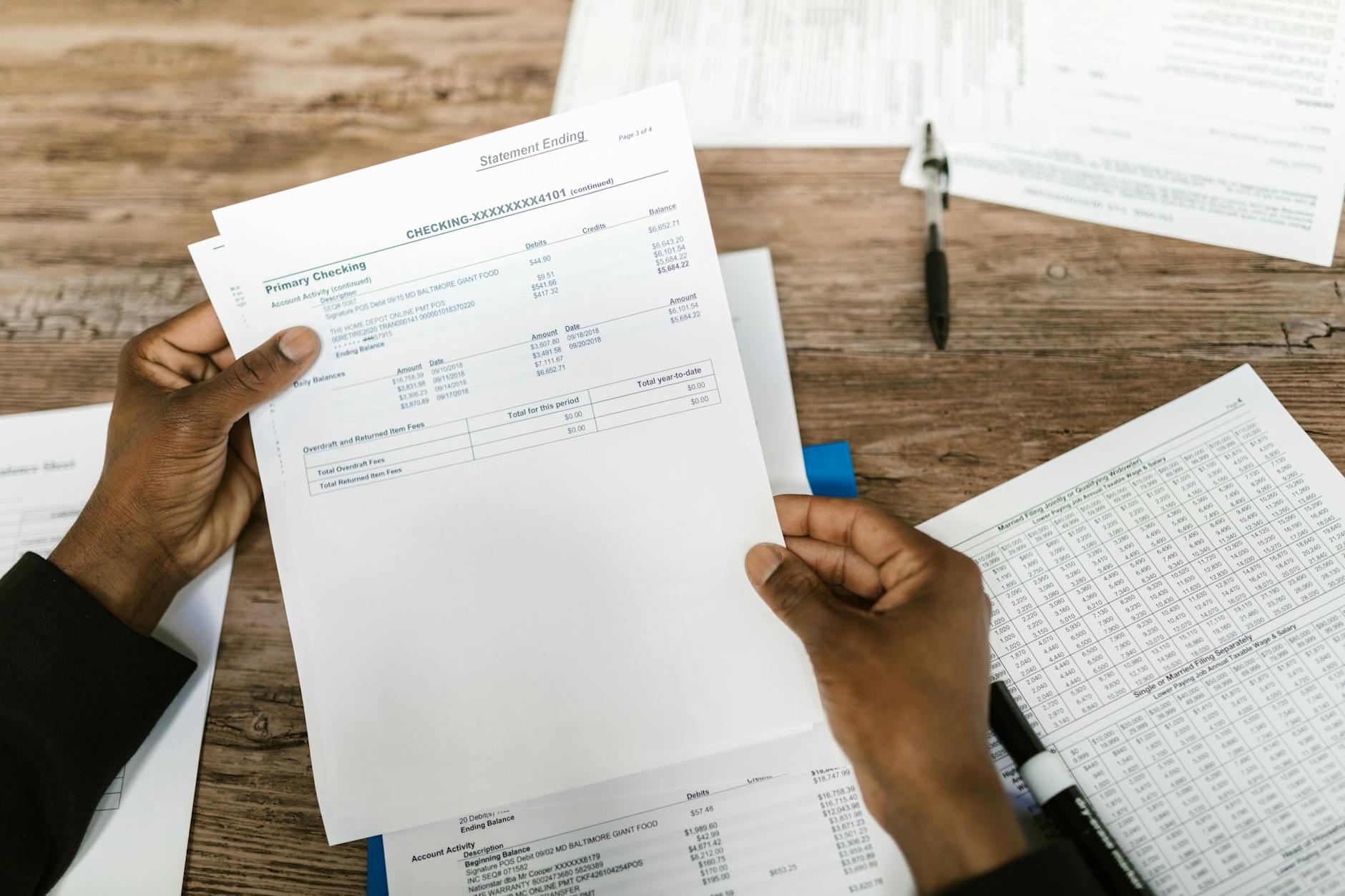
Reconciliation validation is where you confirm that the migration was accurate. Skip this step and you risk discovering errors months later when filing tax returns or closing your books.
Generate the Trial Balance report in Zoho Books as of your opening balance date. Compare every line item against the Xero Trial Balance report for the same date. Every account must match. If there are discrepancies, trace them back to the specific import step: a misclassified account, a missing journal entry, or an incorrect opening balance entry.
Run the P&L report for the current period in both Xero and Zoho Books. If you migrated mid-period transactions, the totals should align. Differences typically come from tax treatment variations (inclusive vs. exclusive), rounding on currency conversions, or transactions that were posted in Xero after the lock date.
Compare the Balance Sheet across both systems. Focus on accounts receivable and accounts payable totals: these should match the sum of open invoices and bills you imported. Also verify bank account balances, inventory valuations, and equity accounts. Bank reconciliation in Zoho Books can then proceed using the verified opening balances as the baseline.
Review the Receivables and Payables aging reports in Zoho Books. Every open invoice and bill should appear with the correct due date, amount, and customer or vendor name. Cross-reference against the equivalent aging reports in Xero. Any missing or mismatched transactions need to be corrected before you begin operating in Zoho Books.
A parallel run means operating both Xero and Zoho Books simultaneously for a defined period, typically one to two weeks. This is your safety net before fully cutting over.
During the parallel run, enter every new transaction in both systems. At the end of each day or week, compare key reports: bank balances, outstanding invoices, expense totals, and tax summaries. Discrepancies reveal configuration issues, mapping errors, or workflow differences that need resolution before you switch.
Track the following during your parallel run:
If you complete the parallel run with no material discrepancies, you are ready to cut over. Set a final cutover date, stop entering transactions in Xero, and begin operating exclusively in Zoho Books. Keep Xero accessible (read-only) for at least six months for historical reference and tax filing support.
After cutover, several housekeeping tasks ensure Zoho Books is fully operational.
Recreate any repeating invoices, recurring bills, or payment reminders that you had running in Xero. Zoho Books supports recurring transactions, automatic payment reminders, and workflow rules that can automate approval processes. Configure these under Settings in the relevant modules.
Set up user accounts for your team members in Zoho Books with appropriate role-based access. Zoho Books offers granular permission controls: you can restrict users to specific modules (invoicing only, reports only) and set approval hierarchies for expenses and purchase orders.
Schedule focused training sessions for each team. Accountants need to understand the Zoho Books workflow for journal entries, reconciliation, and reporting. Sales teams need to know how to create and send invoices. Procurement staff need purchase order and bill management training. Zoho Books has a different navigation structure than Xero, so hands-on time with the interface reduces errors during the first month.
Do not cancel your Xero subscription immediately. Keep it active in read-only mode for at least three to six months. You may need to reference historical transactions, reprint old invoices, or pull data for tax audits. Once you are confident that all historical data is accessible in Zoho Books or archived externally, you can downgrade or cancel the Xero subscription.
How long does it take to migrate from Xero to Zoho Books?
A typical Xero to Zoho Books migration takes one to three weeks depending on data volume and complexity. Small businesses with a single bank account and fewer than 500 contacts can complete the process in five to seven working days. Larger businesses with multi-currency transactions, multiple bank accounts, and extensive inventory require two to three weeks. The parallel-run testing period adds another one to two weeks on top of the core migration timeline.
Does Zoho Books offer free migration from Xero?
Yes, Zoho offers free migration assistance for businesses switching from Xero or QuickBooks to Zoho Books. The Zoho migration team helps with data export, import, and initial setup at no additional cost. This free support covers the standard migration scope. For complex setups involving custom fields, multi-entity structures, or large transaction volumes, working with a certified Zoho partner can provide more hands-on support throughout the process.
Can I transfer bank reconciliation data from Xero to Zoho Books?
Bank reconciliation data does not transfer directly between Xero and Zoho Books. Instead, you set accurate opening balances in Zoho Books as of your migration date and start fresh reconciliation from that point forward. The reconciled bank balance in Xero becomes your opening bank balance in Zoho Books. Uncleared transactions (outstanding cheques, pending deposits) as of the migration date need to be entered manually in Zoho Books so that future reconciliations start from a clean baseline.
What data cannot be migrated from Xero to Zoho Books?
Several data types do not migrate automatically: bank reconciliation history, audit trails, file attachments on transactions, Xero tracking categories (these must be recreated as Zoho Books custom fields or reporting tags), custom report templates, and user permissions. Repeating invoices and recurring bills also need manual recreation in Zoho Books. Paid and voided invoices are typically excluded from migration since they are captured in your opening balances instead.
Should I migrate all historical data or just opening balances?
For most businesses, migrating opening balances plus one to two years of transaction history provides the best balance between completeness and migration complexity. Older data can be archived as PDF reports from Xero for reference. Migrating every transaction from inception increases the risk of mapping errors and extends the validation timeline. Open (unpaid) invoices and bills should always be migrated regardless of age, as they affect your receivables and payables balances going forward.
Aaxonix handles end-to-end Xero to Zoho Books migrations for businesses of all sizes, from data export and field mapping to reconciliation validation and team training. Book a free consultation to get a scoped migration plan and timeline tailored to your accounting setup.
Book a free consultationMigrating from Xero to Zoho Books is a structured process with clear checkpoints at each stage. The effort you invest in the pre-migration audit and data migration planning determines how smooth the transition will be. Follow each step, validate at every checkpoint, and give your team time to adapt to the new interface. Once the parallel run confirms your data is accurate, the cutover is straightforward, and Zoho Books becomes your single source of financial truth.
NetSuite SRP for Indian services firms: resource planning, project accounting, time tracking, ASC 606 revenue…

A straight comparison of Zoho and HubSpot for Indian SMBs. Covers CRM, marketing automation, pricing…
Step-by-step guide to building a Zoho CRM sales pipeline for Indian SMBs. Set up stages,…
Our team builds systems that actually work. No fluff, just honest architecture and clean implementation.