

Blog
Zoho Social for SMBs: Scheduling, Analytics and Brand Monitoring
On this page Managing social media across five or six channels without a dedicated tool…
11 min read
Read article →
Without purchase orders, vendor portal in Zoho Books payments happen on trust. There is no approved record of what was ordered, at what price, or by whom. Zoho Books accounting features includes a full purchase order module that connects to vendor bills, inventory receipts, and accounting entries automatically.

A PO system fixes disputes about quantities, rates, and delivery terms by creating an approved document before the commitment is made. For GST e-invoicing setup-registered businesses, a proper PO trail also supports input tax credit claims by documenting the commercial basis of each purchase.
For related guidance, see our TDS management in Zoho Books.
Go to Purchases > Purchase Orders > + New. Select the vendor, add line items, specify quantities, rates, and applicable GST. Key fields: PO number (auto-generated), expected delivery date, delivery address, and terms and conditions.
Set up approval rules based on PO value: auto-approve under Rs. 25,000, department head for Rs. 25,000 to Rs. 2 lakh, CFO for above Rs. 2 lakh. Approvers receive email notifications and can approve from mobile.
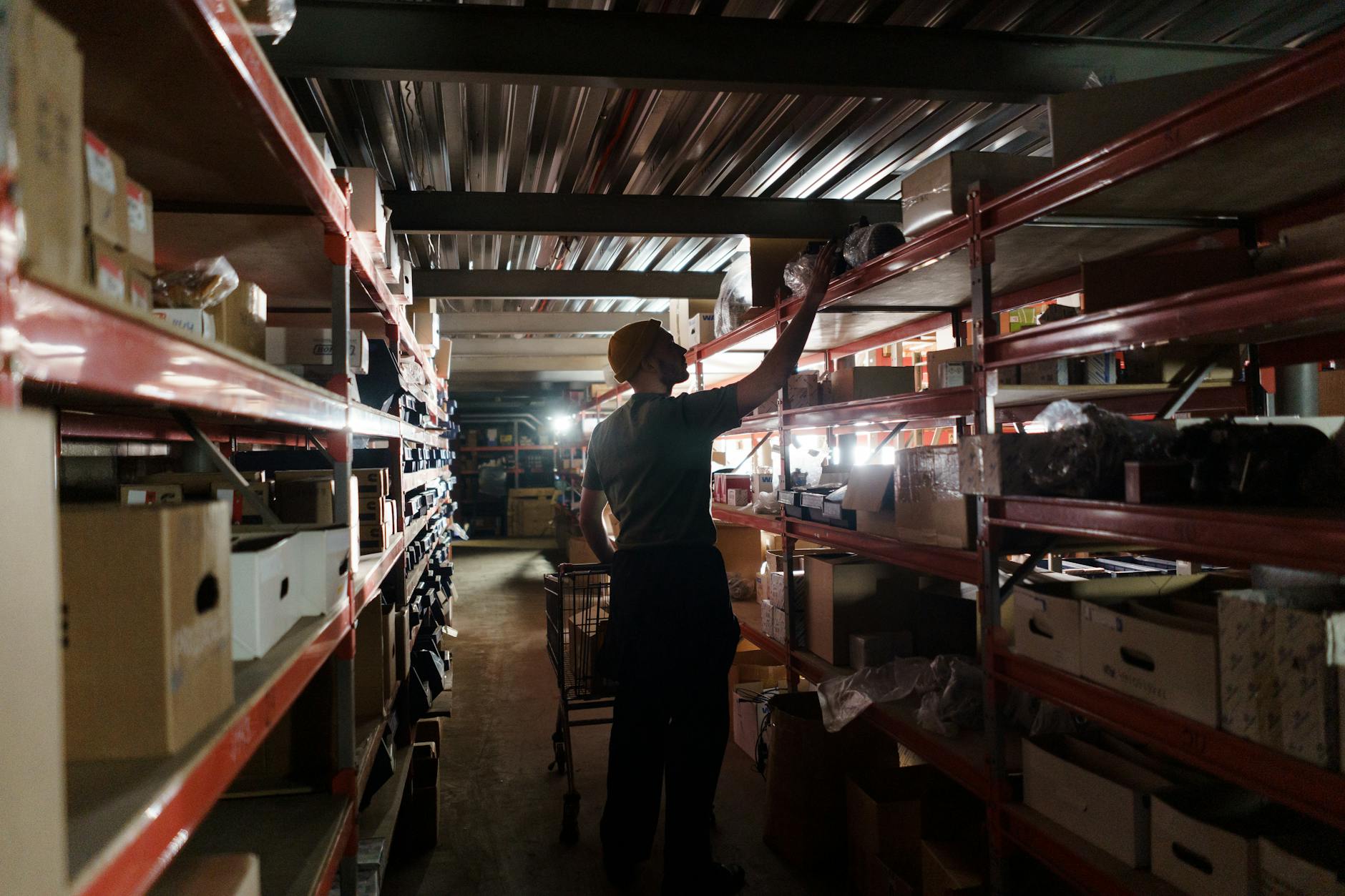
When goods arrive, convert the PO to a vendor bill in one click. All line items carry over. For partial deliveries, record a partial bill and the remaining quantity stays open.
PO status shows as Draft, Sent, Partially Billed, Billed, or Cancelled. Filter by status to see open purchase orders representing committed but unfulfilled spend.
Receiving goods against a PO automatically updates stock levels in Zoho Books or Zoho Inventory management. The inventory receipt is linked to the PO, creating a complete audit trail.
A purchase order in Zoho Books is a formal document sent to a vendor that authorises the purchase of specific goods or services at agreed prices. Creating a PO before placing an order gives you an approval trail and makes vendor bill matching much simpler at month-end.
To create a PO, go to Purchases > Purchase Orders > New. Select the vendor, add line items with HSN codes and quantities, and apply the applicable GST rate. If the vendor is registered under GST, Zoho Books will auto-fill their GSTIN from the vendor record. For inter-state purchases, IGST applies. For intra-state, CGST and SGST apply at the split rate. Once confirmed, email the PO directly to the vendor from Zoho Books or download a PDF copy.
If your organisation requires manager approval before POs are sent to vendors, enable the PO approval workflow in Settings > Approval. You can set approval thresholds (for example, POs above Rs 50,000 require finance head approval) and the system routes them accordingly.
Three-way matching is a control that ensures you only pay for goods and services you actually received, at the price you agreed to. In Zoho Books, the three documents are the purchase order, the goods receipt note (recorded as a bill against the PO), and the vendor invoice (either uploaded by the vendor through the portal or entered manually).
When a vendor bill is created against an open PO in Zoho Books, the system shows a split view: the PO quantity and unit rate on one side, the billed quantity and rate on the other. Discrepancies are highlighted. Your accounts team can approve exact matches immediately and flag differences for review. This prevents overbilling and short-supply situations from passing through unnoticed.
Many vendor payments in India are subject to TDS (Tax Deducted at Source). For contractors (Section 194C), the TDS rate is 1% for individuals and 2% for companies on payments above Rs 30,000 per transaction or Rs 1,00,000 per year. For professional services (Section 194J), the rate is 10% on payments above Rs 30,000 per year.
In Zoho Books, enable TDS on a vendor-by-vendor basis. Open the vendor record, go to the Tax Details section, and set the TDS section (194C, 194J, etc.) and rate. When you create a bill for that vendor, Zoho Books calculates the TDS amount and shows you the net payment due. On payment, Zoho Books records the TDS deducted and generates the quarterly TDS return data for Form 26Q filing.
Yes. If you are purchasing from an overseas supplier, select the supplier’s currency when creating the PO. Zoho Books converts the amount to INR using the exchange rate you configure. The bill and payment records are in the foreign currency, with INR equivalents shown for accounting. Any exchange gain or loss on payment is recorded automatically.
You can create a partial bill against a PO in Zoho Books. The PO stays open with the remaining quantity showing as unbilled. When the vendor delivers the rest, you create a second bill for the balance. The PO closes automatically when the total billed quantity matches the ordered quantity. This partial fulfilment tracking is important for capital goods and bulk material orders.
Record the advance as a vendor advance payment under Purchases > Payments Made. When the vendor delivers and you receive the bill, apply the advance against the bill. Zoho Books offsets the advance amount and shows you the net balance due. For advances subject to TDS, deduct TDS at the time of the advance payment, not at the time of the bill.
On this page Managing social media across five or six channels without a dedicated tool…
Zoho for Indian e-commerce sellers: multi-channel inventory sync with Amazon and Flipkart, Shiprocket shipping, Desk…

On this page Why a Zoho Projects Microsoft Teams Integration Matters for Modern Teams Project…
Our team builds systems that actually work. No fluff, just honest architecture and clean implementation.